
The Menu Bar provides the following options:

Save
Lock/Unlock
Copy
Switch View between Note View and HTML Code View
Delete Note
Send Note: Set where you want to send the Note with the dropdown
- Search: Set the Search Scope by Selecting
Note titles ,
Entire Book Contents, or
Current Note
Text Edit
- Create Date / Last Modified Date
More Information:
Save:  You must click “Save” to save your work. If you close the application without saving your Note, you will be prompted to save your work. However, if you power off without saving, you may lose changes made after the last save for the note you are currently editing. (option to autosave is planned)
Lock/Unlock:  This currently only locks a note to prevent accidental edits. This is not password protected. (option to password protect is planned)
Copy:  Copies Note body to clipboard.
Switch View:  Allows you to toggle between the Note (or Link) and the HTML code that generates the note. For Notes, the HTML coding is not directly editable. For Links, the HTML is editable.
Delete Note:  This will delete the current Note (or Link) that you are viewing unless it is Locked or if there are child Notes under the current Note.
Send Note:  This will open the email application defined under “Settings” / “Connections” and create a new email (or calendar item, or task if available as an option)
Search:  Use the Search function to search for text in Note Titles,
 Entire Book Contents, or the Current Note
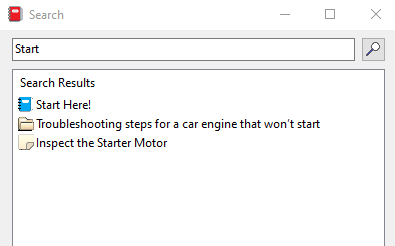
For example, to search for the word “Start” in the Note titles:

When you click on the Search button you might see the following:
Text Edit:  This opens the Text Editing toolbar for Notes.

After highlighting text in your Note, you can modify the Font Family, Font Size, Font Style, Create a Link, or Undo the Font Style Settings. You can also add media files as well (audio, video, images).
To resize images or video: Ctrl + Click or Shift + Click on the image.
Create Date / Last Modified Date:  Click this to toggle between displaying the Create Date/Time for the Note or the Last Modified Date/Time for the Note.
Buttons in the lower left hand corner expand and shrink the Tree View:
