Here are some tips to help you get started!
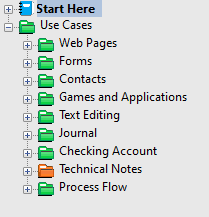
Double click on the icons in the Navigation Control to open folders and notes
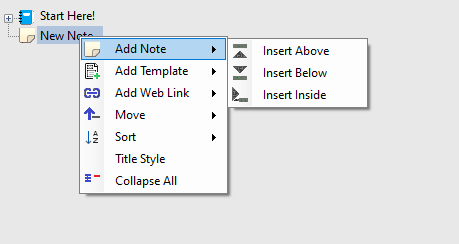
Right click on icons to add new notes, move notes, and change the appearance
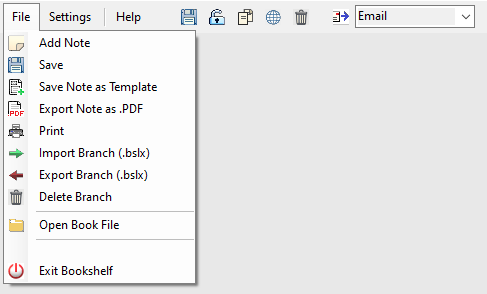
Click on the File menu to Print your note, Export as a .PDF file, Save as a Template, or Import/Export/Delete a branch
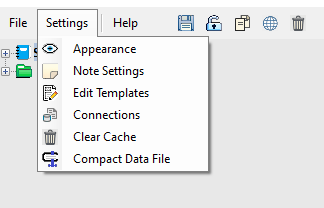
Click on the Settings menu to change the Appearance of your workspace, Set your default template for new notes, or Edit your templates.
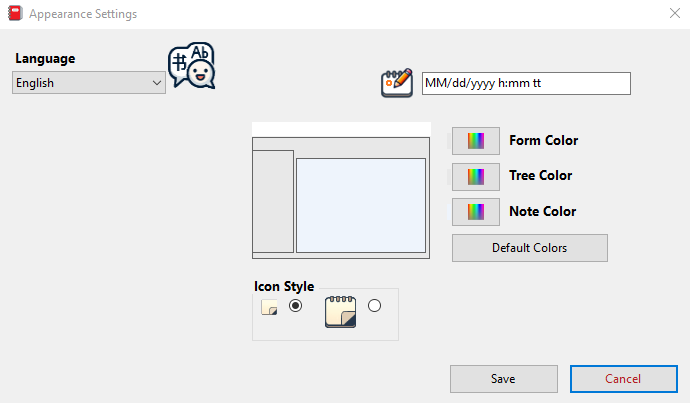
In the “Appearance Settings” You can set your language, date/time display style, workspace color scheme, and set your icon size.
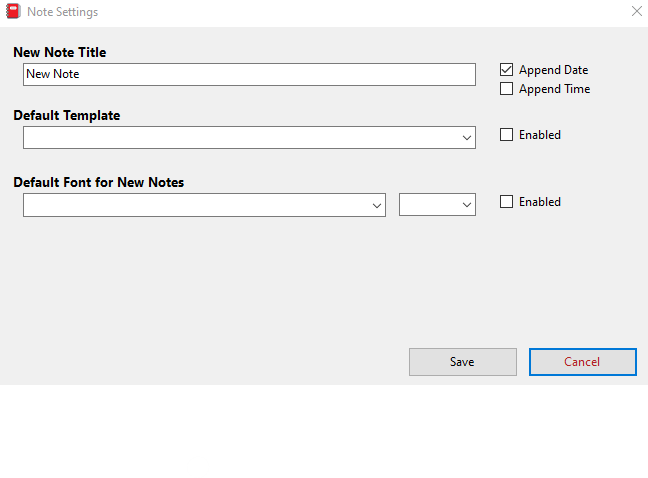
In the “Note Settings” you can set your default note title for new notes, select a default template to use for new notes, as well as a default font.