
The File Menu provides the following options:
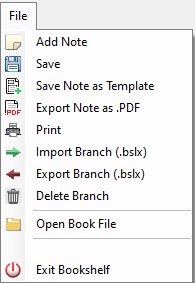
Here are the details for each option:

Select “Add Note” to create a new note, template, or link in the tree view. You can also right click any note in the tree view to add notes.

Click to save the currently active page. This is the same as using the Save Button In the control bar.

Click to save the currently active page as reusable Template when creating new Notes.

Click to save the currently active page as a PDF file.

Click to print the currently active page.
To set your template as a default for new notes:
- Click on the “Settings” menu
- Select “Note Settings”
- Select your Template the “Saved Templates” list
- Check the “Enabled” Checkbox

Import a .bslx file created from “Export Branch”

You can think “Export Branch” as creating an archive of one of the branches in the tree view. The export file contains all notes in the “branch” under the currently selected note.

This will delete an entire branch of the tree view. Warning: This cannot be undone. If you want to archive a branch before deleting, use “Export Branch”

Click to Open an existing Bookshelf file (.bslf file) or create a new .bslf file.

Click to close the currently open Bookshelf file (.bslf file). This will also clear the cache if set to clear on exit in “Cache Settings”.