
When you select:

You will see the following:
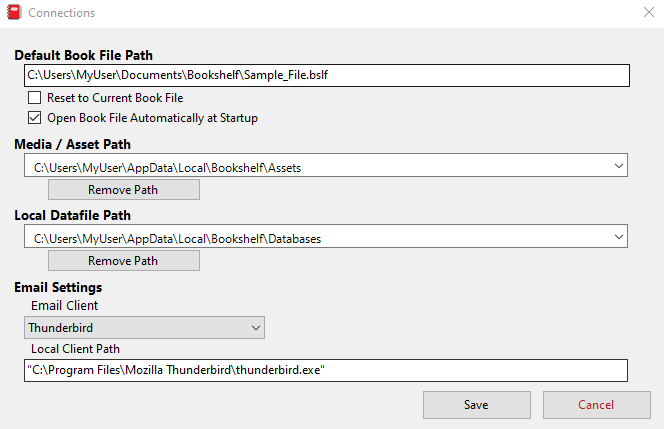
How it works:
Default Book File Path: This is where you can set the default Book File (.bslf file) when the application starts:

You can manually copy in the path to the Book File that you want to open when the application starts.

Or check the “Reset to Current Book File” checkbox to set the Book File that you are currently using to open automatically when the application starts.

Check the “Open Book File Automatically at Startup” option to enable opening the selected file automatically.

If “Open Book File Automatically at Startup” is left unchecked, you will see an “Open Book File” dialog box when starting the application.
Media / Asset Path: This is used to set the path where media assets (audio, video, images) for this book file are stored. The path can be uniquely set for each book file.

Local Datafile Path: This is used to set the path for custom datafiles (.bdbf files) that you can access through Bookshelf. A Customer Relationship Management (CRM) Database example is available download and test.

Here are the steps to test the CRM Example – Customer TouchPoint v1.4
Go to: https://www.sofexec.com/software-downloads/
- Download “Customer Relationship Management Interface Example – TouchPoint“. Unzip CRM_Example_Customer_TouchPoint_v1.4.zip
- In Bookshelf, click “File”, “Import Branch” and Import CRM_Example_Customer_TouchPoint_v1.4.bslx
- Download “Customer Relationship Management Data File Example – TouchPoint“. Unzip the data file “BookshelfCRM_v1.bdbf”
- In Bookshelf, click on “Settings”, “Connections”, “Local Datafile Path”. You will find (and can set) the Local Datafile Path there.
- Copy the BookshelfCRM_v1.bdbf data file to the folder that you set as your Local Datafile Path.
You should then be able to explore the example CRM!
Email Clients: Here you can set the email client you wish to use with Bookshelf:
